
Peer review assignments in Canvas allow students to read and provide structured feedback on each other’s work, building critical thinking and writing skills. Canvas can automatically pair students for peer review or you can assign pairs manually, giving you flexibility in how the proccess runs.
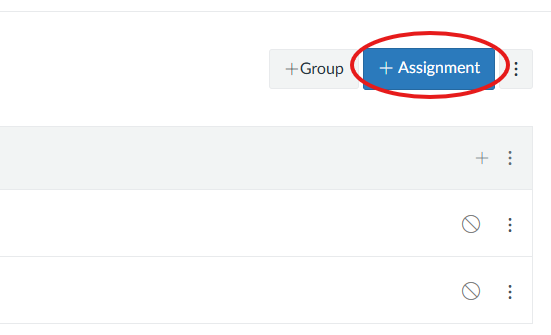
- Go to Assignments, click the +Assignment button.
- Add assignment details, such as instructions, submission type, etc. Peer reviews can be used with group assignments, if it is then click This is a Group Assignment.
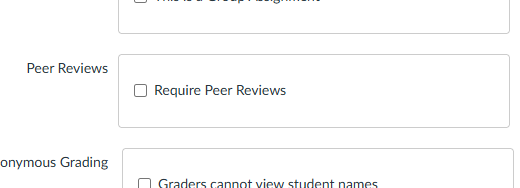
- Click Require Peer Review, by default peer reviews are assignment manually. If you do want manually, know that this setting is only for On Paper and No Submission assignment types.
- If you Automatically assign reviews, you’ll have additional options. Reviews Per User is where you enter how many reviews each student will be required to complete. Assign Reviews is where you’ll select a date or enter a date manually for students peer reviews to be assigned.
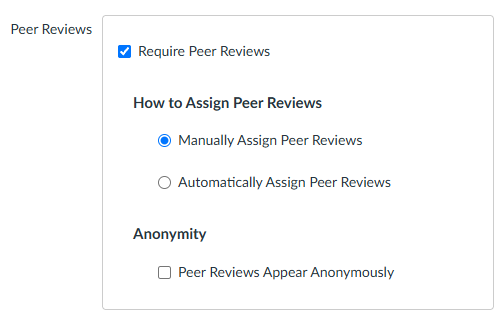
- You can make peer reviews anonymous by clicking the box.
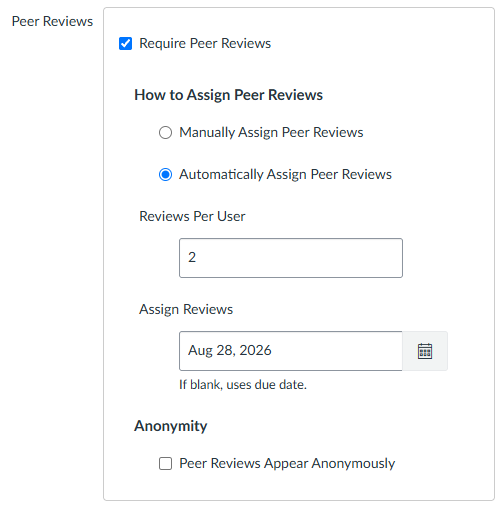
Note: If Assign Reviews is left blank, Canvas will use the assignment due date.
- Click Save & Publish, or Save if you want the assignment to stay a draft.