
SpeedGrader allows you to view and grade student assignment submissions in one. You can also provide feedback, with text or media comments, directly within the submission. The grades entered in SpeedGrader are automatically displayed in the Gradebook.
- Click Assignments (or Grades) in the course navigation.
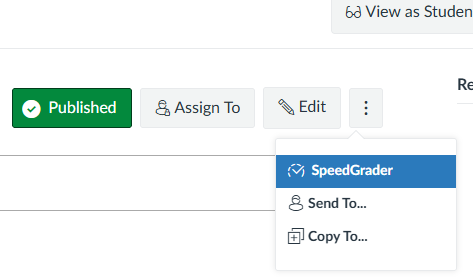
- Click the assignment name, then click SpeedGrader in the top right (or click a grade cell in the Gradebook and click SpeedGrader icon).
- Use the student list on the right to move between submissions with the arrows or the dropdown.
- View the submission, leave comments in the right-hand panel and use the rubric (if attached) to score.
- Enter the grade in the score box.
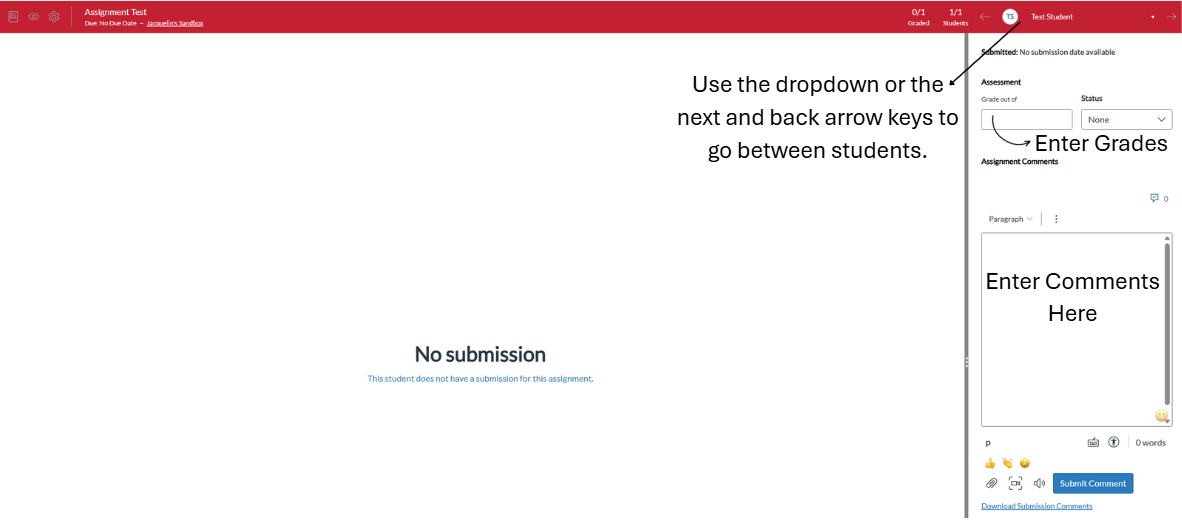
- Grades save automatically as you move to the next student.