You can invite users to join your course at any time if through the Page page. When you manually add users to a course, you can add them into any available role, below you will see the permissions that are allowed for a specific role.
-
-
- Teaching Assistants (TAs) provide course support and have some or all of the same permissions as Instructors.
- Observers can be parents, guardians, and/or mentors. They can be linked to a student and view student progress in the course.
-
- In course navigation, click People.
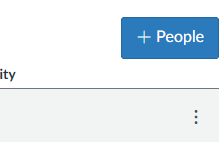
- Then click the blue button, +People.
- You’ll add the person using the Login ID and enter in the persons email address.
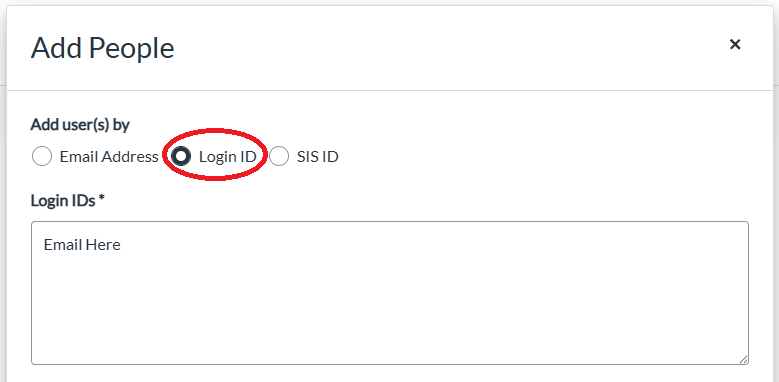
Note: That if the person has not verified their email address from the Canvas Invitation, Canvas will not be able to find them.
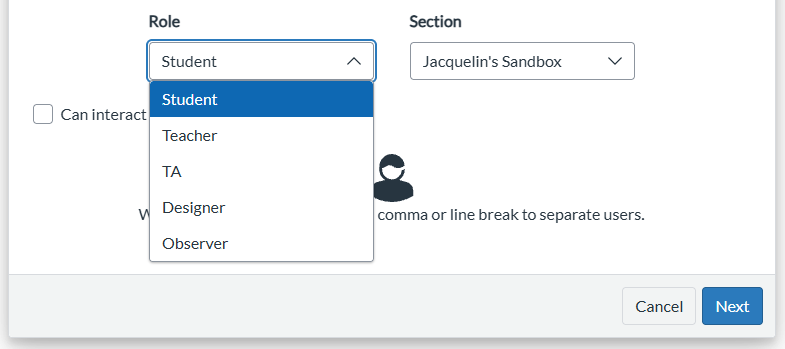
- You’ll use the drop down box to select their Role, then click Next.
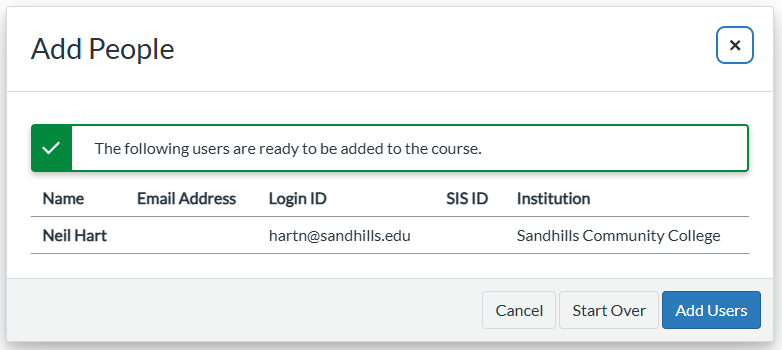
- A box will pop up for you to verify the information is correct, then click Add Users. You’ll get a Green Check when Canvas found the person.