
Canvas allows you to import all or selected content from a previous course, including modules, assignments, quizzes, pages, and files. They will go directly into your new course in just a few steps, which is useful at the start of a new semester when you want to carry over a course you’ve already built and refine.
- Open the Course you want to import content into. Click Settings at the bottom of course navigation menu.
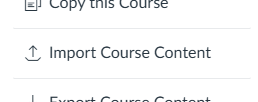
- On the right-hand side of the Settings page, click Import Course Content.
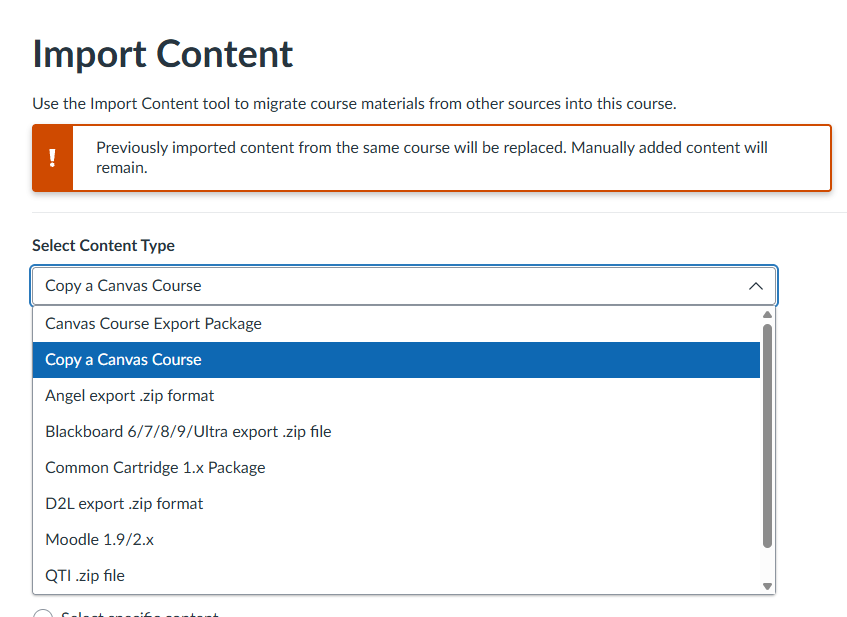
- Under the Content Type dropdown, select Copy A Canvas Course.
- In the Search For A Course field, type the name of the course you want to copy from and select it from the results.
- Choose one of the following options:
-
- All Content= copies everything from the course
-
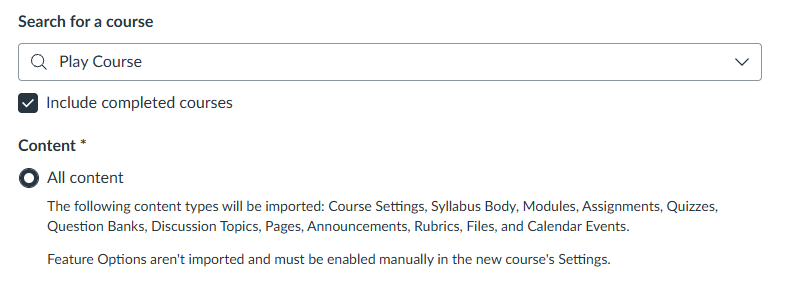
Please Note: That if you select this option it will copy over the Orientation Quiz, eLearning Help Site, Course Evaluations links. You can delete the duplicate.
-
-
- Select Content= let’s you choose only certain modules, assignments, pages, etc.
-
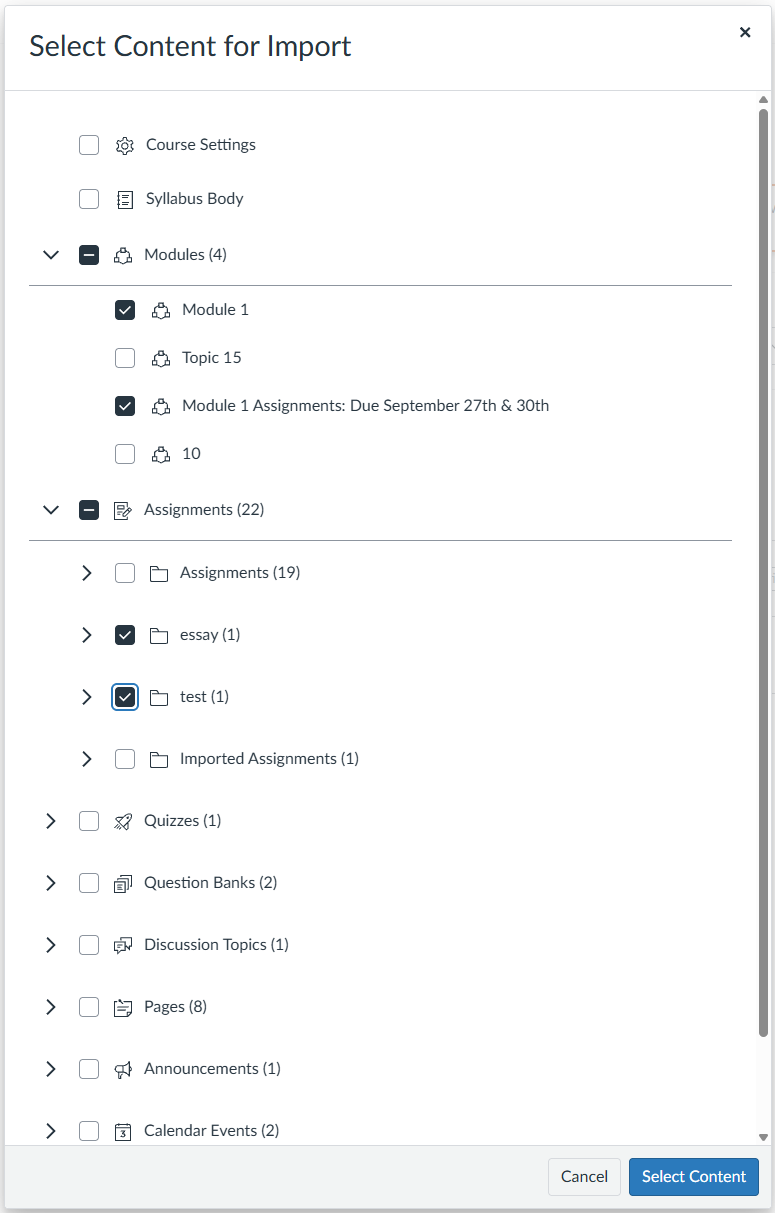
If you select this, click Select Content, check the boxes next to the items you want to import, then click Select Content to confirm your selections.
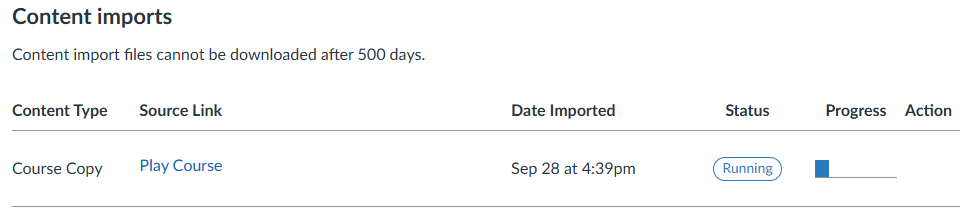
- Click Import. When you scroll down to the Current Jobs section to monitor the progress bar, wait until it shows Completed before navigating.
Please Note: Importing doesn’t delete anything already in your new course, it adds to it. Review your modules after importing to check for any duplicate items.