
In Canvas you can add external tools. Copyleaks and the Teacher Scanning are tools used to scan submitted assignments whether they are a text submission or and upload file, and check for any plagiarism and AI detection. Please note that if students don’t agree to the Copyleaks message, it will flag that the document as plagiarized or having used AI. You can then upload the document into the Teacher Scanning Tool to manually check the submission.
- Create an Assignment or use an Existing Assignment, you’ll go down to the Submission type in Assignment Editor. You’ll select Text Entry and/or File Uploads. Either one or both of those submission types must be selected in order for Copy Leaks to show up.

- Scroll down and click the box Add Document Processing App.

- Copyleaks will pop up and you’ll click on the box.

- Then you click Add to Assignments.

- To add the Teacher scanning tool, go back to your Modules. You’ll click the + button at the top of any Module.
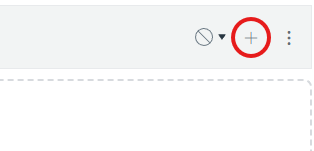
- In the Add drop-down select External Tool.

- You’ll scroll down until you see Teacher Scanning Tool.

- Scroll down, you can rename it or leave it as Quick Scan, then click Add Item.

- Back in Modules, you’ll see the External Tool. You don’t need to publish this as it’s only for instructors.

Please note that if students don’t agree to the Copyleaks message, it will flag that the document as plagiarized or having used AI. You can then upload the document into the Teacher Scanning Tool to manually check the submission.