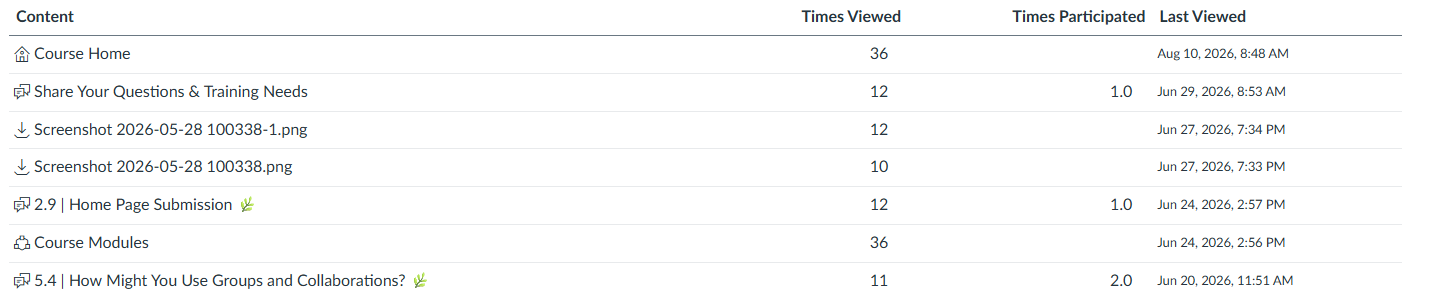
There are a couple of ways you can pull a 10% report in Canvas, you’ll find how to do the report for inactive students at the end. Please note, that these options will have you do them for each individual student.
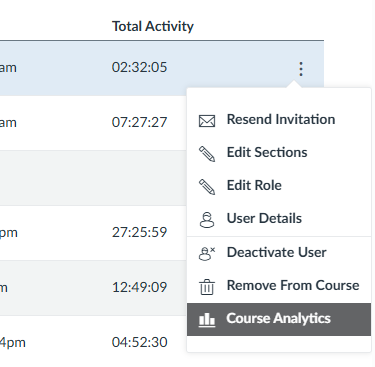
- The first option, is using Course Analytics. You’ll go to People, in the course navigation. Then on the right hand side you’ll see three dots along the column of the students name.
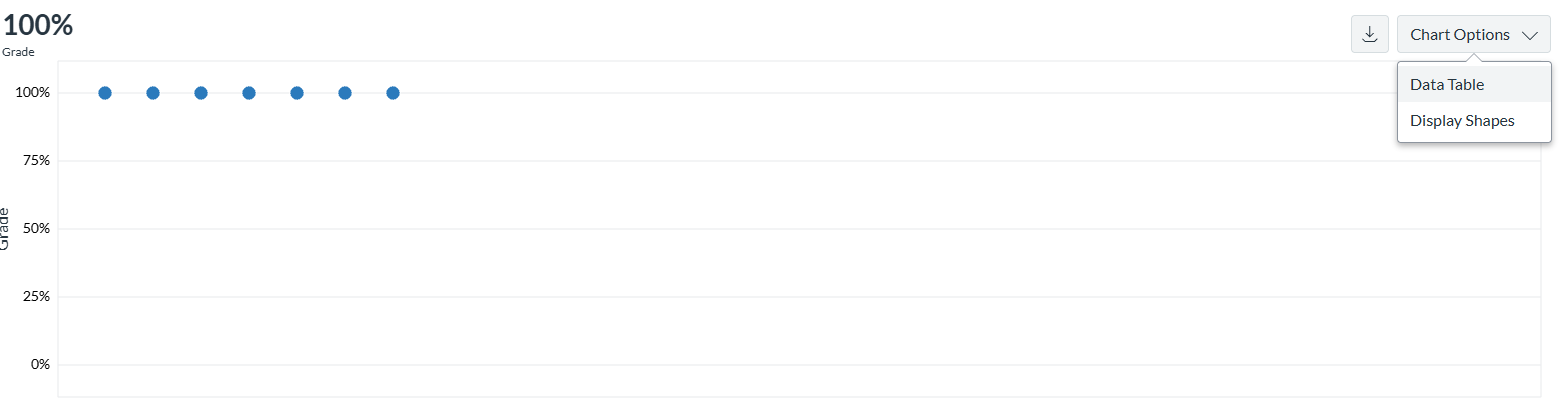
- Then a chart will pop up, you’ll go over to the right side and change the chart options to Data Table.
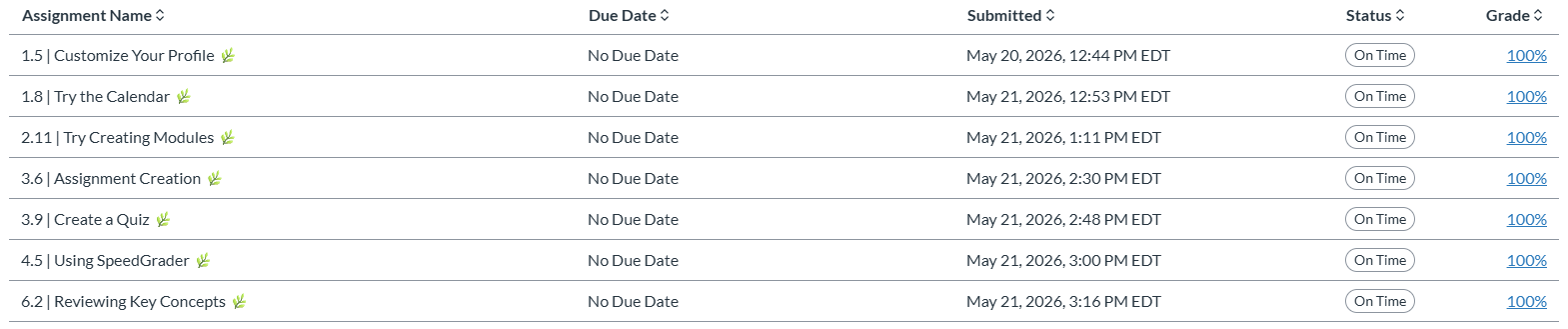
- This will show you the dates students have submitted assignments.
- The second option, would be going to the Gradebook. You’ll go to the assignment, any that quality for the 10% report, and click on the three dot. You select SpeedGrader.
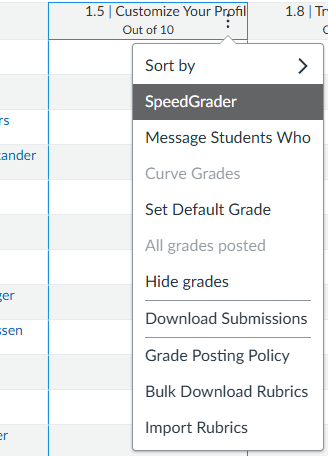
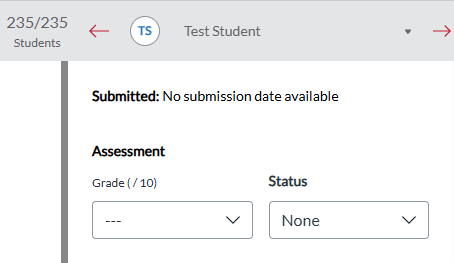
- Here you’ll be able to see the date and time of submission. You use the dropdown or arrows to click through the students.
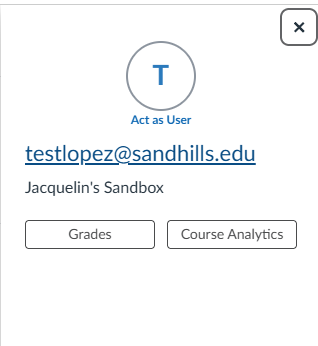
- For Inactive Students: Go to People and click on the Student’s Name.

- A tab will open on the right, click the Student’s Name again.
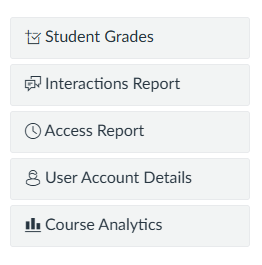
- On the right-hand side, click Access Report.
- You will know the student submitted an assignment if there is a 1.0 underneath the Participated column.