
Canvas integrates with Microsoft Teams, making it easy to connect your course to a Teams account for virtual meetings, file sharing, and collaboration.
- In the course navigation, select Microsoft Education.
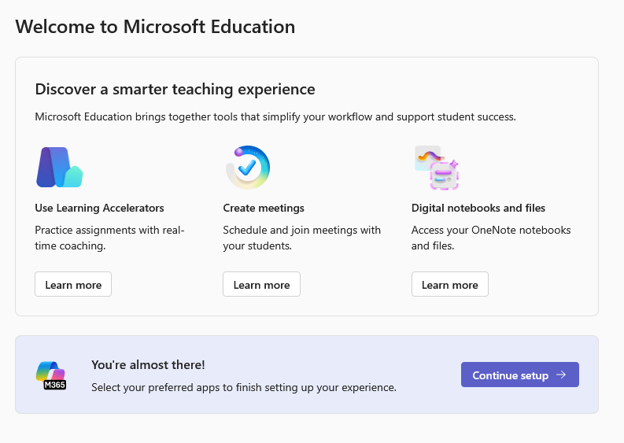
- If you haven’t set up your Microsoft Education app, then you’ll have to do that first. You’ll see a box pop up, where at the bottom you’ll see Continue Setup.
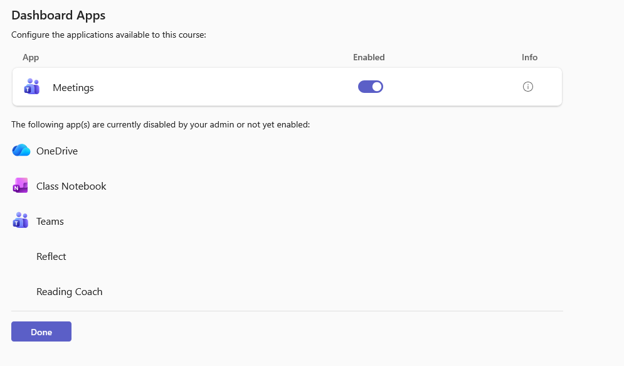
- Then you’ll enable Meetings by toggling the button and click Done.
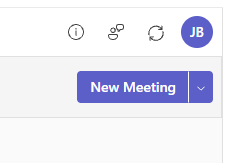
- Once you’re app is setup then you’re ready to create a meeting! In the top right, you’ll see a purple button that says New Meeting.
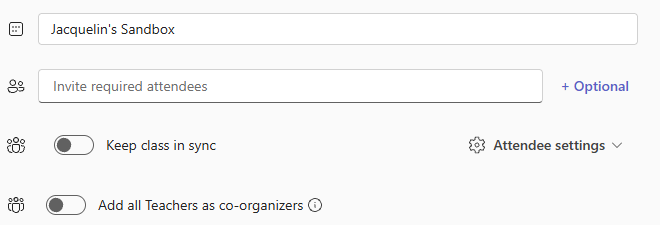
- In the text box that says Invite Required Attendees, you select in the drop-down the student(s) in you course.
- Input the date and time of the meeting.
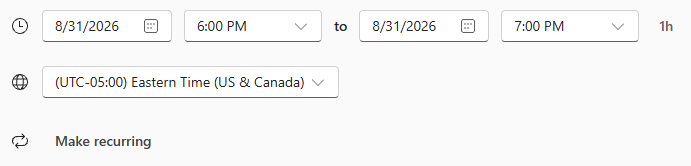
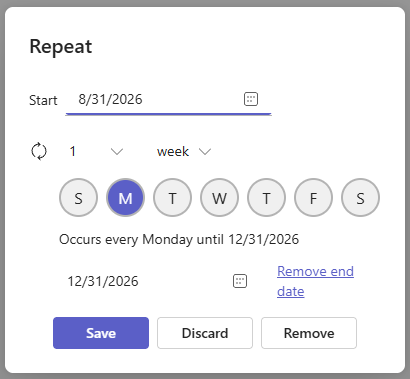
Note: If this is a recurring meeting, you select it where it says Make Recurring with the date and time here instead.
- Enter a message if you need in the text box at the bottom. Then click Save at the top right. It will send an email to the students that they are being invited to a Teams Meeting.
With Microsoft Education, it doesn’t automatically populate the meeting in your Canvas Calendar.
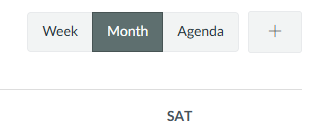
- You’ll have to add an event using the + button at the top of the calendar.
- A box will pop up and at the bottom you’ll see More Options.
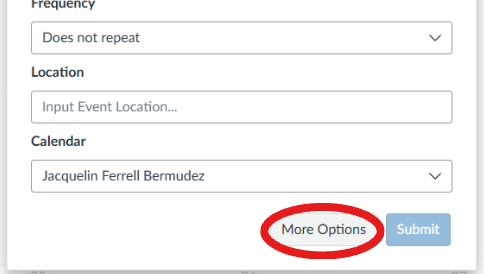
- This will extend the text box, so you can insert the Meeting Link. Then click Create Event.