
Item banks found you, the instructor, this means in whichever course you’re in you’ll have access to all of your item banks. Item banks can be used to store questions, and can create them in the item banks tab in course navigation or you can create them from your quizzes.
- Go to Quizzes, click on the quiz you want to edit.
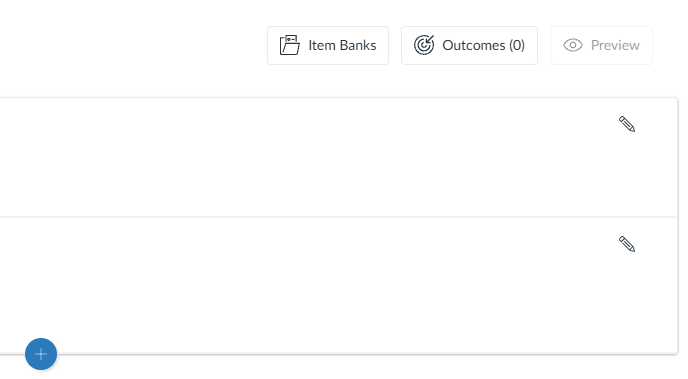
- Click Build, then click the Item Banks box at the top right. Then select the Item Bank you want to use.
- Click +Add/Random or individually select the question you want to use by clicking the blue plus next to the questions.
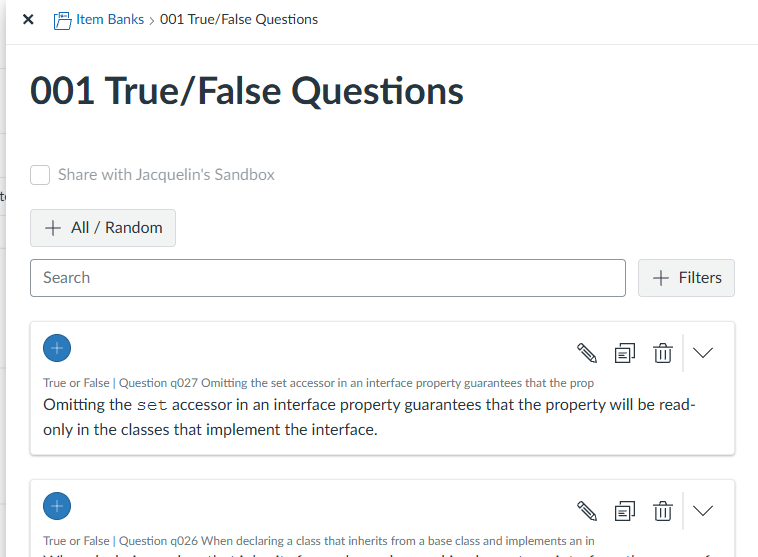
- Click the X button on the pop-up window, to close the Item Bank.
- You can choose to Use All Questions or select Randomly Select Questions. You’ll type in how many questions you want to use then how then how many points each one is worth.
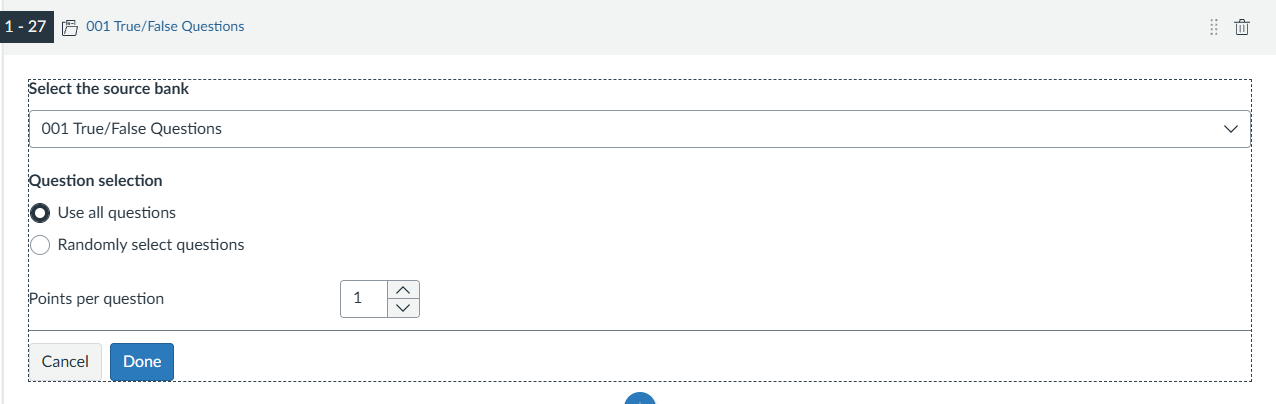
- Click Done.