
When you edit your Notification settings in the account level it applies to all of your courses. If you want to edit your notifications based on your courses, then you’d have to open that courses, settings and go to notification there.
Note: In your account Settings page, you’ll be able to add a phone number and a personal/other email where you can receive notifications as well.
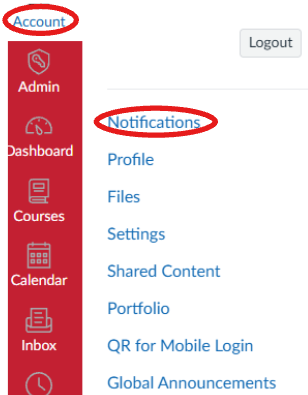
- Click Account in the global navigation, then Notification.
- Find the type of activity (e.g. “Submission Comment”, “Announcement”). Click the icon in the column for your preferred delivery method (email, push, etc.) to toggle it on/off, or set a frequency (immediately, daily, weekly, never). If you add other modes of contacts then you’ll see that column added for you to edit.
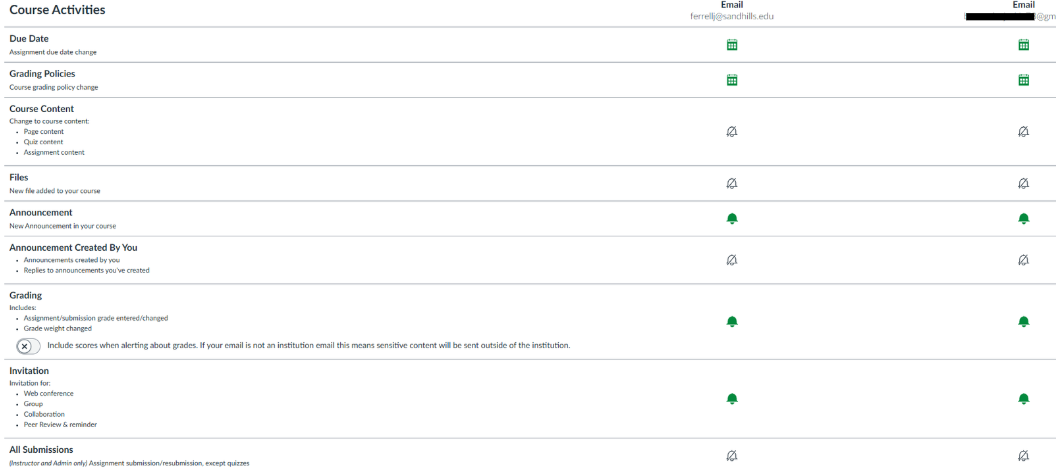
- Changes save automatically.