
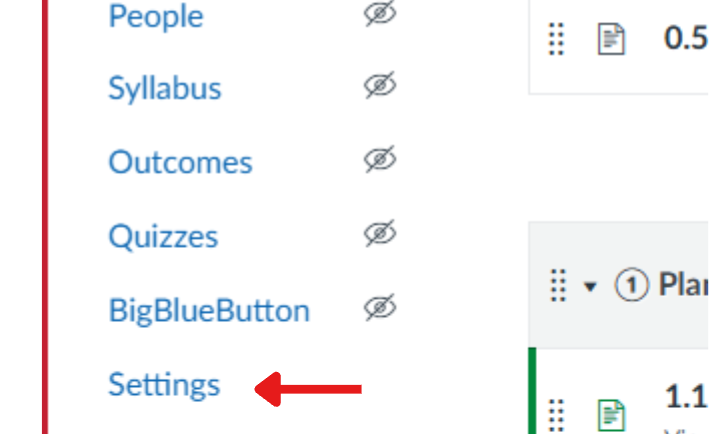
When you edit the navigation menu, it edits it for the students, hiding it from their view. You’ll know it’s hidden when you see the slash through an eye next to the tab ( ). It’s recommended to give Students limited access to tabs in their navigation menu, so they actually go through the course content and not jump around to assignments or quizzes before reviewing the content.
- Click Settings at the bottom of the course navigation.
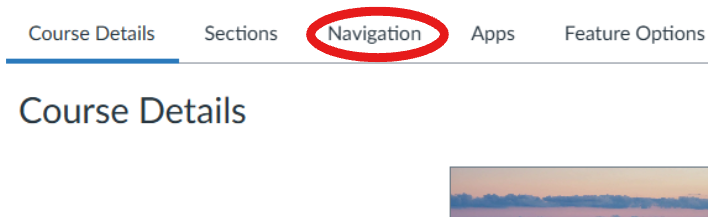
- Click the Navigation tab at the top.
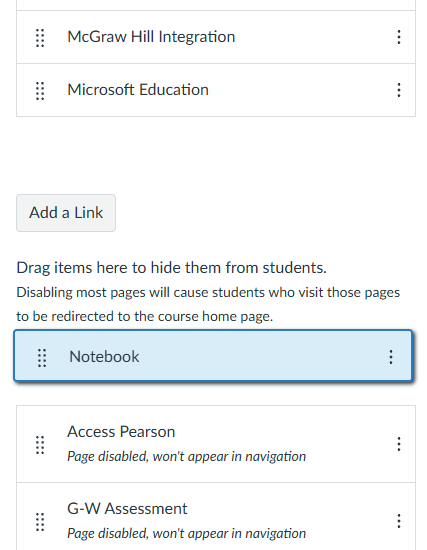
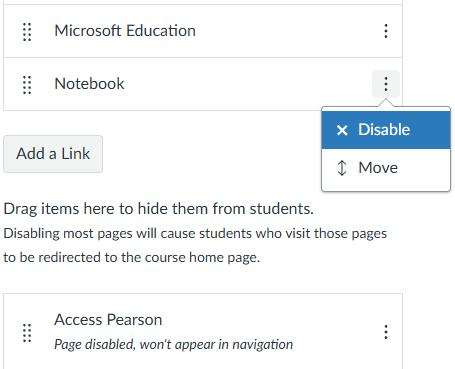
- Drag items you don’t want students to see down to the gray Disabled section. Or click the three-dot menu next to an item and select Disable.
- Click Save at the bottom.